

Create a location
A location is your starting point for the physical structure. It can represent a holiday house or an entire coworking building. You do not need to create areas and rooms first.
Before you start
Select the correct workspace and make sure you have permission to manage its locations.
Steps
- Open Locations and start creating a location.
- Enter a clear name, such as Villa Aurora or Luna Campus. Add an optional description and save.
- Open the new location. Add its address and other details in its master data.
- Check the effective time zone. Use the workspace default or set the location's own time zone.
- After saving, select the image in the location header to choose a picture. JPEG, PNG and WebP files up to 10 MiB are supported. Upload starts after selection.
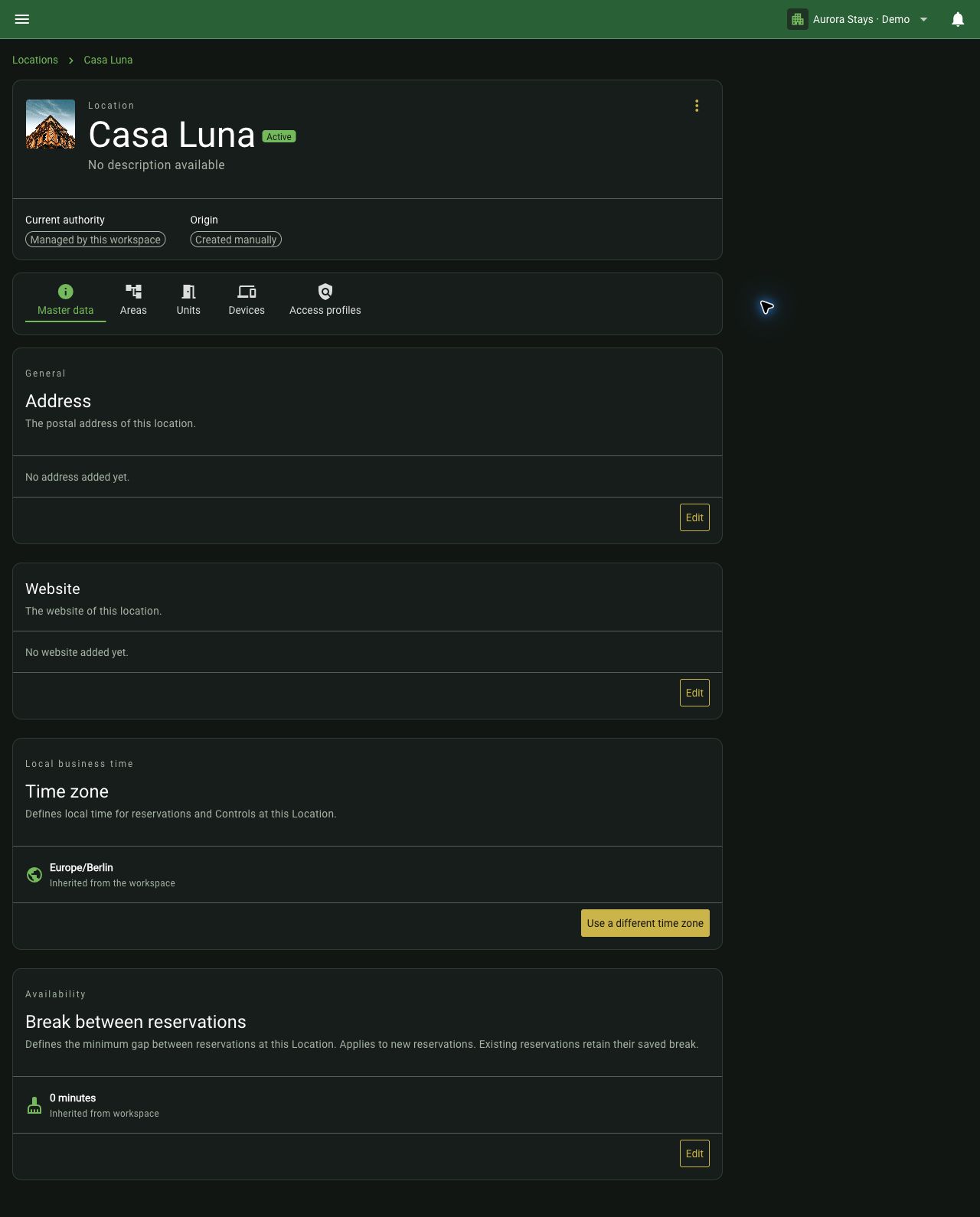
Casa Luna with its image, master data and inherited Europe/Berlin time zone.
Choose the right structure
Holiday rentals: If Villa Aurora is always rented as a whole, use the location directly as a unit. No extra levels are needed.
Coworking: At Luna Campus, add areas for floors or wings and rooms for offices or meeting rooms. Then decide which should be independently bookable.
A saved location is not yet a reservable unit. Define that in the next step.
If an action is missing
Check your permissions and the location's status. Externally managed details may be read-only. Changing the time zone does not automatically move existing reservation times.